


UnboundFile macOS disk space analyzer hero image featuring a futuristic NVMe SSD with purple lighting floating in a dark, star-filled space environment.

UnboundFile - Free Mac Disk Space Analyzer for Apple Silicon

Unbound Planet's UnboundFile. A free Mac disk space analyzer and file manager for Apple Silicon. Find large files, compare folder sizes and choose what stays. No account or subscription.

Where did the space go?

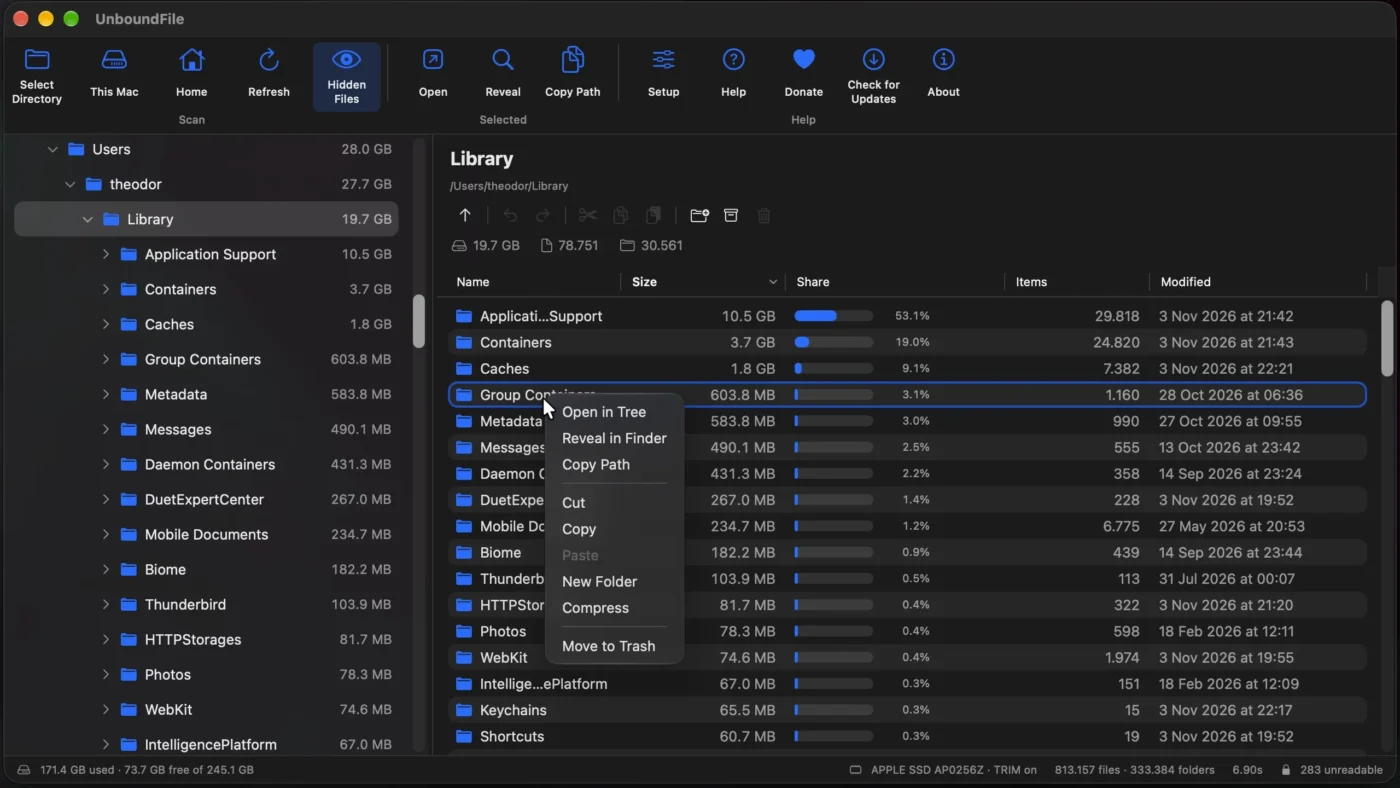
A full SSD is easier to deal with when you can see the folders behind the numbers. UnboundFile shows your Mac's disk usage as a folder tree and a sortable file list. Follow the largest folders, check their contents, then move or remove the files you no longer need.

Within nova, I build tools I want to use - for this one, it's something I have on Windows and massively missed on macOS. This one puts folder sizes and file actions in the same window. It is native SwiftUI, free and open source. Scanning runs locally; Check for Updates contacts GitHub for release information.

Download UnboundFile 1.1 for Apple Silicon

Version 1.1, build 117. Released 3 November 2026, macOS 14 or later, Apple Silicon only.

Everything is free with no ads. Consider supporting unboundplanet.com.

Buy Me a Coffee at ko-fi.com

SHA256700e2d6784fadd6730433e379b0443db6f8ffef53d27c85e3d19b223ee6c3ec9Copied!
Screenshots
Expand allCollapse all

Part One: Find What Is Taking Up Space on Your Mac

1) Find large files and sort folders by size on Mac

1.1) Start with the biggest folders
When you want to find what is taking up space on your Mac, a folder total is often more useful than a list of individual files. A project can contain thousands of small assets and still occupy more space than your largest video. UnboundFile adds up folder contents and shows the larger folders first in the tree.

Select a folder to see its files and subfolders. Sort the contents by size, compare their share of the folder, and keep opening the branches that matter. This is a disk usage analyzer you browse one folder at a time, with the path and sizes beside the contents.

1.2) Check before you clear space
Use Open or Reveal to inspect a file in its usual app or in Finder. Old downloads, extra exports and forgotten disk images can be worth reviewing. A large file is a place to look, not an instruction to delete it.

2) Hidden files, System Data and missing disk space

2.1) Include what Finder normally hides
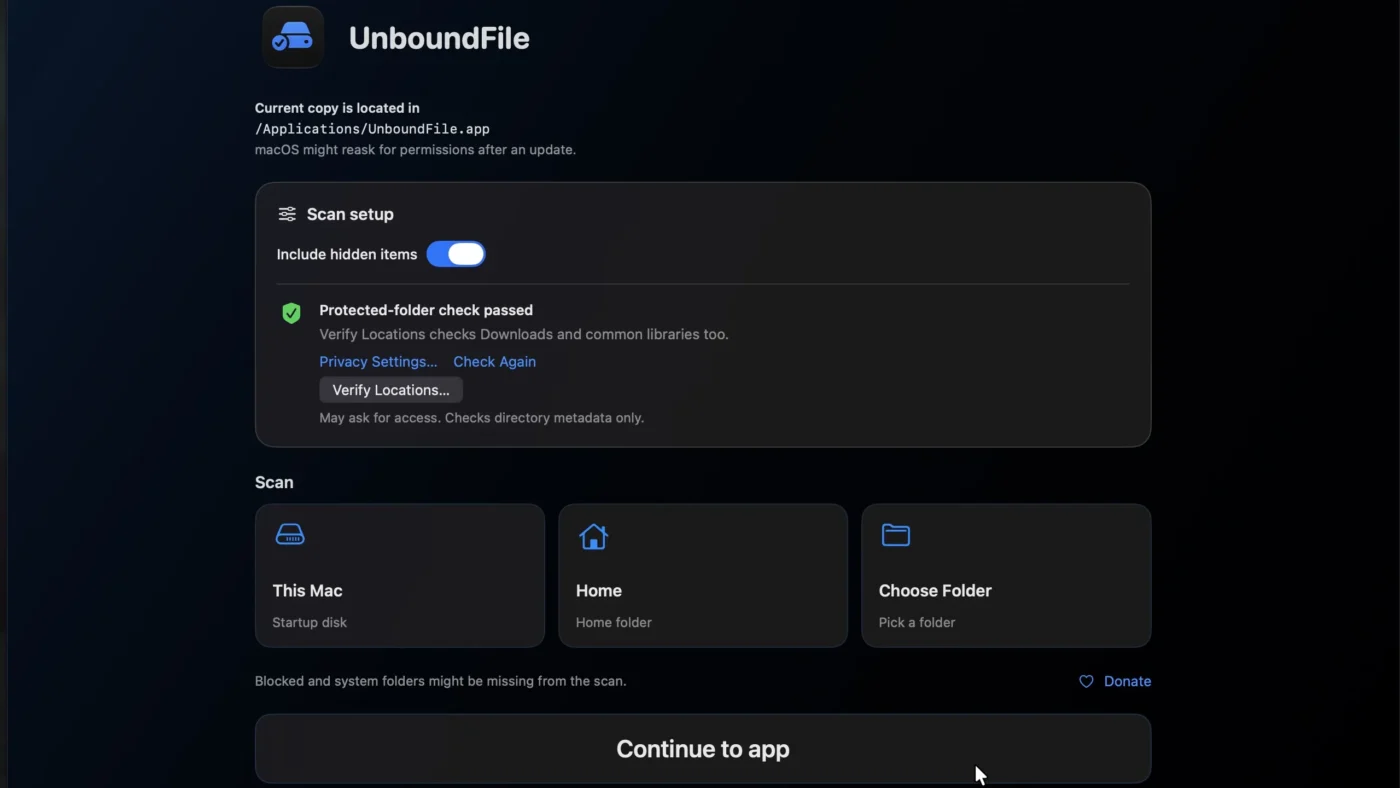
Include hidden items is enabled by default. It includes dot files and Finder-hidden entries in the scan, so a hidden folder does not disappear from the totals just because it is hidden. Access still matters: macOS can block protected locations, and the unreadable count opens a list of affected paths and system errors.

2.2) Understand the storage numbers
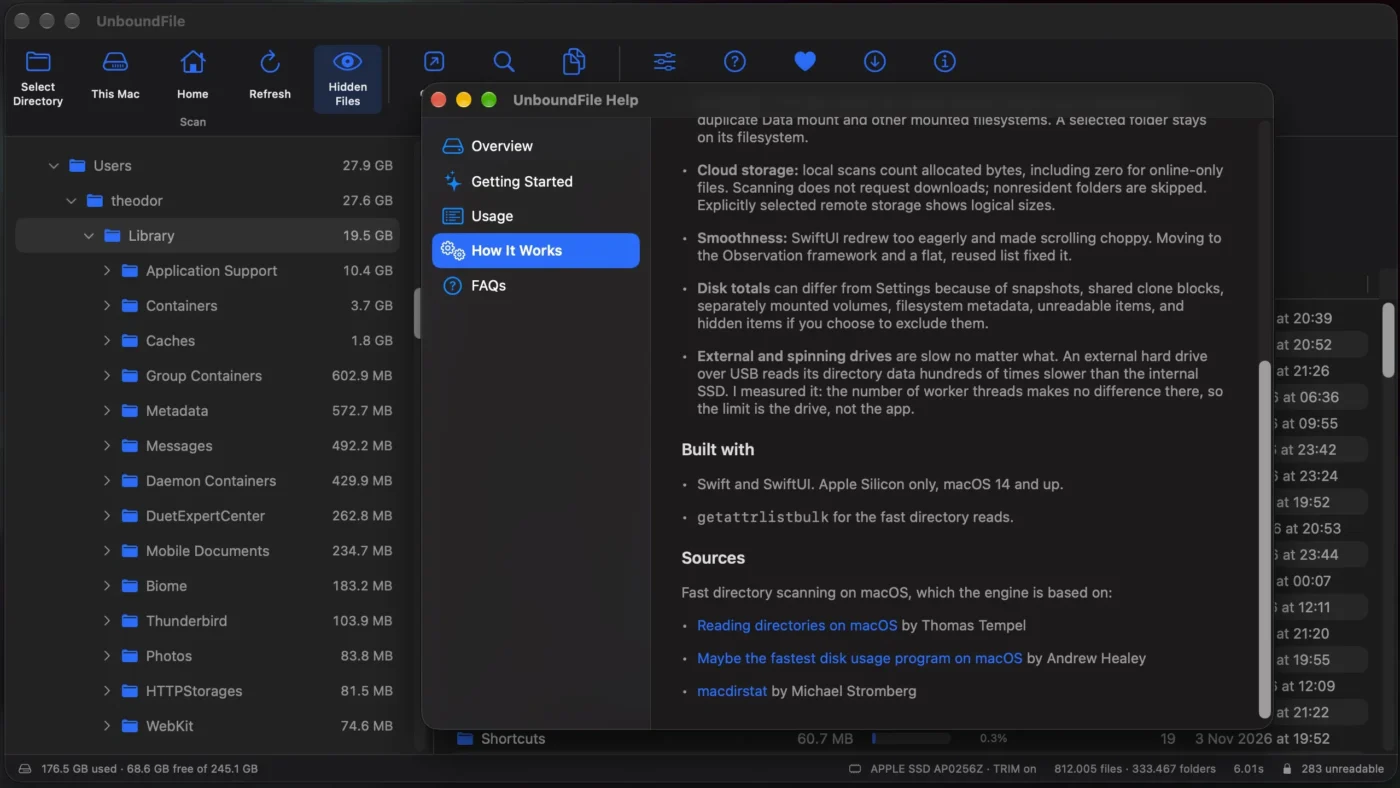
The startup-disk view separates scanned files, other used space and free capacity. APFS snapshots, shared blocks, other volumes and unreadable folders can make file totals differ from disk usage. Other used is an accounting remainder, not a folder to erase. Apple's System Data category is broader than a single directory, too; Apple's storage guide explains those categories.

Scanning reads metadata with cloud downloads suppressed. An online-only iCloud file can have a large logical size and little local allocation. Copying or compressing that file is a separate action and may download its contents.

3) A free, open-source Mac disk space analyzer

3.1) Free to scan and manage files
UnboundFile is free to download and use, with no account, ads or subscription. Copying, moving and sending selected files to Trash are included. The Swift and SwiftUI source is published under the MIT license, along with the tests and DMG builder.

If you are looking for a free DaisyDisk alternative and prefer folder trees and sortable lists, UnboundFile is an option to try. Its workflow follows the files and their locations, with size bars alongside them. The screenshots above show the interface you will actually use.

3.2) Cleanup stays in your hands
The app does not decide which personal files are disposable. You choose what to open, move, archive or trash after checking the results. Scan your MacBook, Mac mini or another Apple Silicon Mac without uploading a file inventory. An update check requests release metadata from GitHub; it does not send the scan results.

Part Two: Install, Scan and Free Up Disk Space

Download, drag, open. Check disk access before the first scan.

1) Download and install UnboundFile on Apple Silicon

1.1) Get the Mac DMG
Use the download button above or the UnboundFile 1.1 release page. Open UnboundFile-1.1.dmg, drag the app to Applications, eject the disk image and launch the installed copy. The download is about 0.68 MB. You do not need Homebrew or a separate helper.

This release requires macOS 14 or later and an Apple Silicon processor, M1 or newer. Intel Macs are not supported. Build 117 was built and checked on macOS 27.2.

1.2) If macOS blocks the first launch
The app is ad hoc signed and not Apple-notarized. If you trust this release and macOS blocks it, try opening the installed app, then go to System Settings > Privacy & Security. Use the app-specific Open Anyway option if offered, and confirm the prompts. Keep Gatekeeper enabled. Apple documents this opening process; a damaged-app or malware warning needs investigation, not the same routine exception.

2) Full Disk Access, hidden items and your first scan

2.1) Check access for this installed copy
The launch screen shows the running app's location and checks a few protected folders. Keep Include hidden items enabled. For broader disk access, use Privacy Settings to open Full Disk Access, enable the installed UnboundFile copy, then quit and reopen it.

Verify Locations checks additional existing folders, including Downloads and common libraries, and can bring up macOS access dialogs. You can continue without granting everything, but some results may be incomplete. Full Disk Access does not make every system folder readable; click the unreadable count to see what failed and why.

2.2) Choose how much to scan
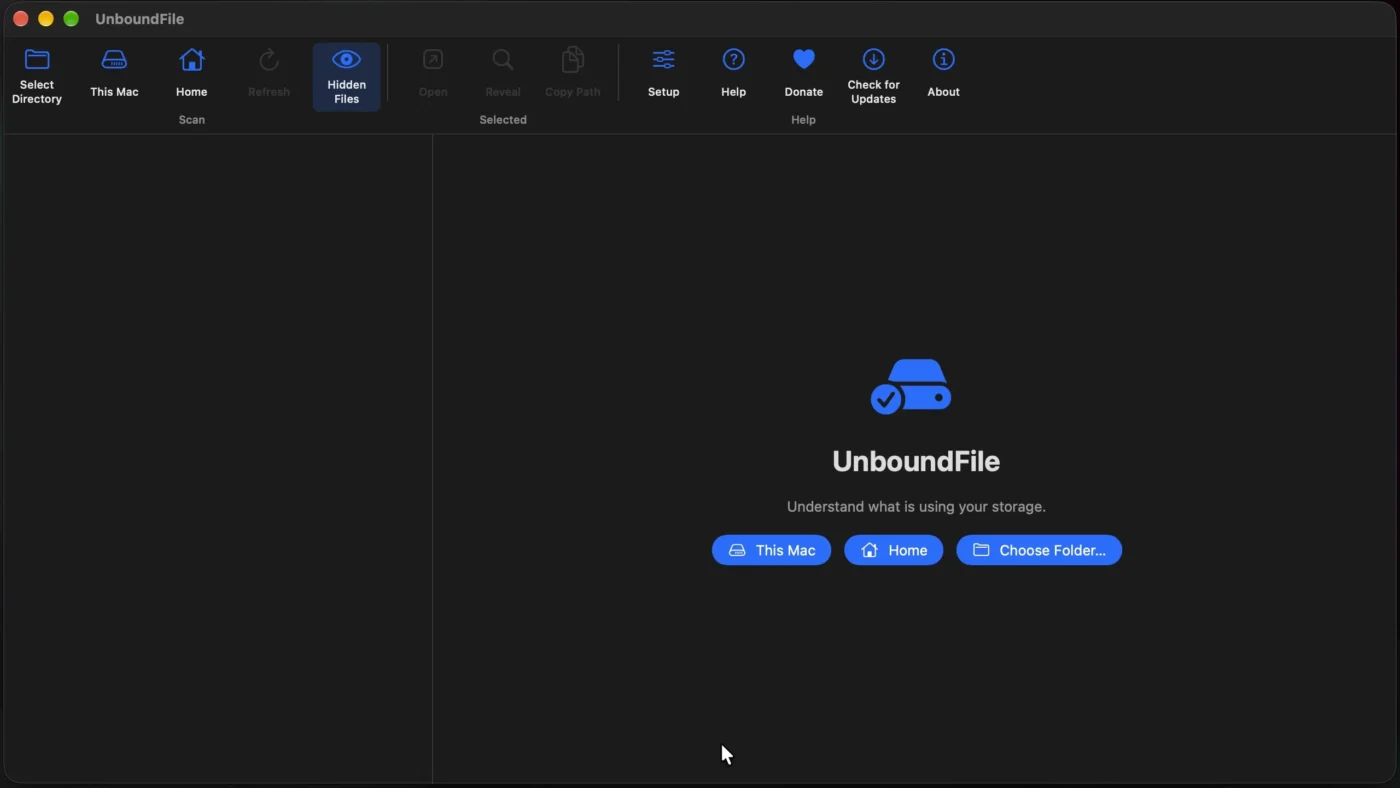
Choose This Mac for the startup disk, Home for your user folder, or Choose Folder for a particular location or mounted external drive. Select a folder in the tree and sort its contents by size to find the larger files. Other mounted drives are not silently added to a startup-disk scan.

Refresh scans the same location again after files change. Setup in the ribbon's Help group reopens the access checks; changes to hidden-item inclusion there take effect when you scan or choose Continue & Rescan.

3) Move files, use Trash and keep the app updated

3.1) Manage the files you have checked
Use Copy, Cut and Paste to copy or move selected items, New Folder to organize them, and Compress to create an archive. Move to Trash removes selected items through Trash. Undo and Redo track file actions within the current app session; they can fail if another app replaces an item or occupies its old location.

For a move between volumes, UnboundFile retains the original in Trash for recovery. That original still occupies space until you empty Trash yourself. Emptying Trash can make an undo unavailable, so check the destination and anything you need to keep first.

3.2) Download future releases
Use Check for Updates in the ribbon or app menu. It checks the latest stable GitHub release and opens its release page when a newer version is available. Updating is manual: quit the app before replacing it in Applications.

After an ad hoc update, macOS may ask for permissions again. If protected locations remain blocked, renew the installed app's Full Disk Access entry and relaunch. The changelog records what changed between releases.

Closing Transmission

That is Unbound Planet's UnboundFile: a free Mac disk space analyzer with file management built in. Follow the folder sizes, inspect the contents and choose what to keep. The app and source are linked above.

If you also want CPU, GPU and memory readings while you work, Sysdash, my free Mac menu bar monitor🔗, lives here in nova too.

Try UnboundFile on a folder you know. If something looks wrong or you have an idea for it, contact me🔗. Tell me which macOS version you use and what happened.
--Theo