


Refresh Unbound globe and refresh arrows positioned on the right against a starfield background

Refresh Unbound - Put Refresh Back in the Windows 11 Context Menu

A small native utility that restores Refresh to the primary File Explorer folder-background menu. Free. Open source. No background process.

Oh... Windows 11.

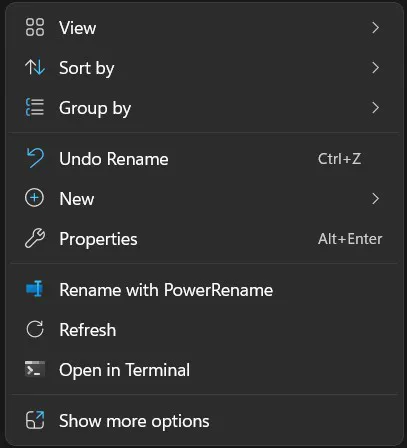
They hid "Refresh", maybe the thing I hit most out of that context menu, under an additional toggle. Sure, right-click the Desktop in newer Windows 11 builds, and Refresh is already there in the modern context menu. Well, Right-click the empty background inside an ordinary File Explorer folder and it is hidden behind Show more options instead.

Hello? It is just unnecessary friction in a place where a familiar command should be easy to reach.

Refresh Unbound restores Refresh directly to the primary modern context menu for File Explorer folder backgrounds. It deliberately leaves the Desktop alone because Windows already provides Refresh there. Enable it once, reload Explorer if needed, and use the folder menu normally.

It is a free native C++ application for Windows 11, built as a packaged shell extension with a small WinUI 3 control panel. No telemetry. No accounts. No advertising. No background service adding another Process in the Task Manager Performance tab (yeah, modern Windows 11 has close to 200 bloat processes).

Refresh Unbound 1.0 - Download and source - for Windows 11 x64 and ARM64

Refresh Unbound is free and MIT licensed. The Microsoft Store is the primary installation method. The source, issue tracker, and build documentation are available on GitHub.

If this small fix saved you a daily trip through Show more options, you can support more work from Unbound Planet.

Support Unbound Planet on Ko-fi

Expand allCollapse all

Part One: Right Click

One missing command. One fix.

1) Where Refresh went

1.1) The extra menu
Windows 11 already knows how useful Refresh is. It remains visible when you right-click the Desktop (on newer builds). Inside an ordinary File Explorer folder, however... SOMEHOW... it's missing. You gotta hit Show more options first. Such weird choices they've made...

In any case, that extra step is small, but it is also completely avoidable. Refresh Unbound adds Refresh to the primary modern menu when you right-click the empty background of a folder. It does not change the menus for selected files or selected folders - to avoid extra bloat.

1.2) What Refresh Unbound changes
Once enabled, the command appears as a native modern context-menu entry. Select it and File Explorer refreshes the active folder view directly. There is no second visible application launching and no window flashing in front of the folder... Simple as that.

2) Why the Desktop is deliberately excluded

Obviously, adding another Refresh command to the Desktop would solve nothing. Windows already places its own Refresh entry there (3rd position, where I tried to position mine as well, but unfortunately I couldn't figure that out - apparently you can't - at least not without breaking some Store rules, I guess.), so Refresh Unbound checks the context and hides its command on the Desktop.

3) A native fix, not a legacy menu hack

A traditional DirectoryBackgroundshell registry belongs to the legacy context menu, which is the menu already hiding behind Show more options. Using that as the primary integration would solve nothing essentially.

Refresh Unbound instead ships as a packaged native shell extension for the Windows 11 modern menu. It uses the supported windows.fileExplorerContextMenus package registration and implements IExplorerCommand.

Unfortunately, as stated earlier, Windows still decides the final order of modern context-menu commands. Refresh may move depending on Windows and the other shell extensions installed on your PC, so Refresh Unbound does not promise a fixed slot.

Part Two: Refresh

Install. Enable. Right-click a folder background.

1.1) Get the app
Open the Refresh Unbound Microsoft Store page and install it normally. Windows selects the appropriate x64 or ARM64 package for your device.

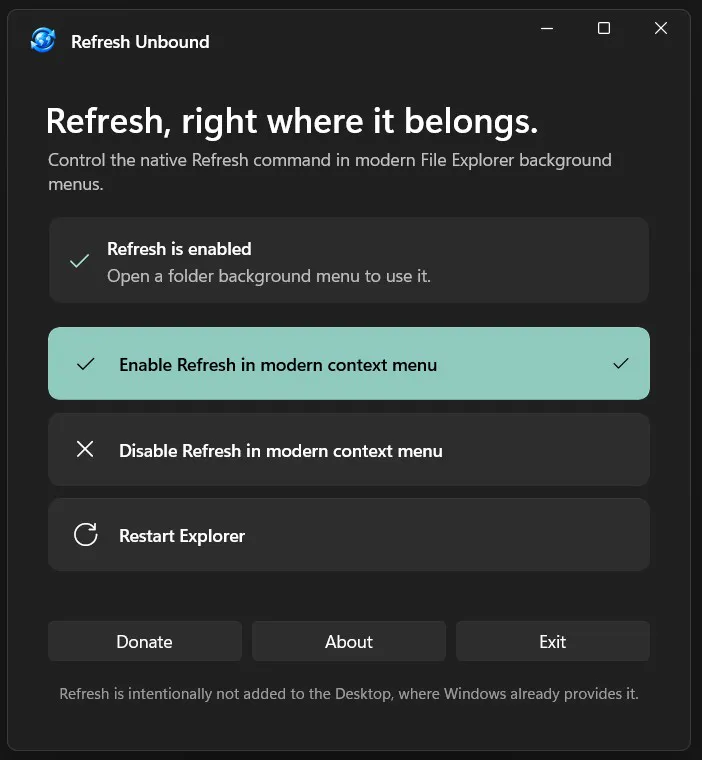
After installation, open Refresh Unbound from the Start menu. The control panel shows whether its context-menu command is currently enabled or disabled. If it says it's enabled but not showing, hit the Restart explorer button.

1.2) Requirements
- Windows 11 version 21H2, build 22000, or later
- x64 or ARM64 processor
- Windows 10 is not supported

Press Enable Refresh in modern context menu. The preference is stored locally in the app's package settings, and the control panel updates its status immediately.

Now open an ordinary File Explorer folder and right-click an empty area in the folder view. Refresh should appear in the primary Windows 11 context menu - unless something else takes prio. Select it to refresh that active view.

As stated above, if the command does not appear immediately, return to Refresh Unbound and use Restart Explorer. This briefly closes the Windows shell and open File Explorer windows while Windows reloads the extension. Use it only when Explorer has not picked up the change on its own.

To keep the application installed but hide its menu command, open the control panel and press Disable Refresh in modern context menu. Restart Explorer only if the visible menu does not update immediately.

To remove everything, uninstall Refresh Unbound normally from the Start menu or from Settings > Apps > Installed apps. Removing the package also removes the packaged File Explorer command. Being a modern .msix, there is no separate cleanup utility or uninstall script.

Part Three: The Interface

A control panel, not another app to manage.

The WinUI 3 control panel keeps the important choices large and obvious. A status card tells you whether Refresh is enabled, followed by separate controls to enable or disable the command.

This is a configurator, not a resident dashboard, so after you choose the state you want, you can close the app. The context-menu extension remains registered with Windows without keeping the control panel or a background service running.

File Explorer sometimes holds onto shell-extension state. The Restart Explorer control exists for that case. Refresh Unbound asks for confirmation, briefly restarts the Windows shell, and reports whether the reload succeeded.

You do not need to press it every time you open the app. It is a practical recovery button for the moment when Enable or Disable has changed the stored state but Explorer has not yet reflected it.

Part Four: Tech Stuff

The short version: packaged, native, and direct.

Refresh Unbound contains two native C++ components: the WinUI 3 control panel and a COM shell-extension DLL implementing IExplorerCommand.

The package manifest registers the command through windows.fileExplorerContextMenus for DirectoryBackground. That target is the empty background inside a directory view. The command checks whether the current location is the Desktop and remains hidden there.

This packaged registration is what lets the command participate in the primary Windows 11 context menu instead of being limited to the old menu behind Show more options.

When you select Refresh, the extension obtains File Explorer's active IShellView and calls its refresh operation directly. It does not start the Refresh Unbound control panel, open another visible program, or simulate a keyboard shortcut.

The enabled or disabled preference lives in local Windows application settings. The shell extension reads that value when Windows asks whether the command should be shown.

The control panel runs when you open it and closes when you exit. Refresh Unbound does not install a background service, analytics component, updater process, or permanently running tray application.

The shell-extension DLL is loaded by Windows only as part of File Explorer's packaged context-menu system. That is different from shipping a separate application that stays running all day merely to watch for right-clicks.

Both x64 and ARM64 Windows 11 devices are supported. The Microsoft Store delivers the architecture appropriate for the PC.

Privacy, Requirements, and Limitations

No cloud dependency. A deliberately narrow scope.

1) Privacy

Refresh Unbound has no telemetry, analytics, advertising, accounts, or cloud service. It does not make automatic network requests. Its enabled or disabled preference is stored locally in Windows package settings.

Network access occurs only when you deliberately open an external link such as Donate, GitHub, the license page, or Unbound Planet. Those pages open in your default browser and follow the destination site's own privacy policy.

Read the full Refresh Unbound privacy policy.

2) Requirements and boundaries

- Windows 11 only: version 21H2, build 22000, or later.
- Architectures: x64 and ARM64.
- No Windows 10 support: the utility targets the Windows 11 modern context menu.
- Folder backgrounds only: it appears when you right-click empty space inside an ordinary File Explorer folder.
- Desktop unchanged: Windows already supplies Refresh there.
- No fixed menu position: Windows controls ordering, which can vary with other installed shell extensions.
- No selected-item command: Refresh Unbound is not intended to add Refresh to selected files or folders.

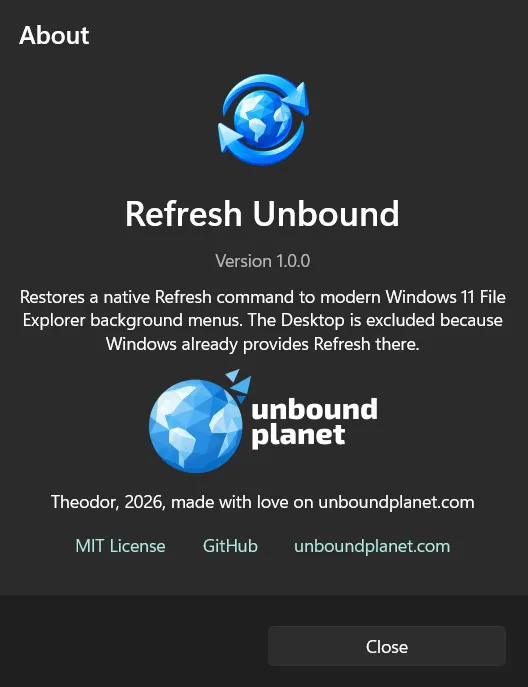
The project is free software under the MIT license. You can inspect the source, build it, report issues, or contribute through the GitHub repository.

Closing Transmission

That is Refresh Unbound. Something that Windows should fix, but doesn't. I've fixed it, I guess, for the time being.

It does not redesign Explorer, replace the context menu, or keep another utility running in the background. It adds one native command, refreshes the active folder view directly, and leaves the Desktop alone.

This is the kind of small tool I like making for nova: focused, local, open source, and easy to remove if you no longer need it. Step by step, I'm trying to ship more complex projects, free of charge. Give the power back to the people! Refresh Unbound is free, MIT licensed, and available through the Microsoft Store for Windows 11 on x64 and ARM64.

If it behaves differently on your setup, especially alongside another shell extension, send me the details, via the contact form or email in the hyperlink below. Windows controls the final menu order, but the command itself should stay simple.

As always, more transmissions are coming, so
Stay tuned right here, on Unbound Planet, with your favorite host.
--Theo

Contact me for feedback, suggestions, or bug reports. You can also use the project's GitHub issue tracker.