

Ollama: Run Local AI Privately on Your Machine
Your data, your models, your rules - zero cloud, zero subscription, zero leaking.

Your data, your models, your rules - zero cloud, zero subscription, zero leaking.
Within nova, we make and use tools that return control to the user. Local AI is exactly that kind of tool.
Every time you send a message to a cloud AI, you are feeding a remote server you do not own. Your queries always sit somewhere else, logged by someone else, billed to you by the token. Running a model locally means none of that leaves your machine. It runs in the RAM and VRAM you paid for, on hardware you control, offline if you want it.
Ollama🔗 is the cleanest way to get there. It is a runtime that downloads, manages, and serves open-source language models on your machine. The install is one file. The interface is both GUI and CLI with REST API accessible at localhost:11434. Nothing phones home. Nothing expires. You pull a model, you run it, you own it.
This unbound article gets you from zero to a working private AI on Windows, macOS, or Linux with either CLI or GUI. Same nova promise as always, easier and more accessible.
1.1) The problem it solves
Open-source language models exist in abundance. Meta releases Llama. Google releases Gemma. Microsoft releases Phi. They are good models - often competitive with the paid ones. The problem has always been running them. Traditionally you needed Python environments, CUDA drivers, complicated inference libraries like llama.cpp or Hugging Face transformers, and model weights you had to manage manually. One wrong dependency version and nothing works.
Ollama wraps all of that complexity into a single binary. It ships with a bundled build of llama.cpp🔗 under the hood, handles quantized model formats natively, detects your GPU automatically, and exposes everything through a clean CLI and a REST API. You do not install Python. You do not touch CUDA manually. You pull a model, you run it. That's all.
1.2) How models actually fit in memory
Ollama runs models in GGUF format with quantization - compressed versions of full-precision weights that trade a tiny amount of quality for a large reduction in memory. A 7 billion parameter model at full float16 precision needs roughly 14 GB of VRAM. The same model at Q4_K_M quantization (4-bit, the standard Ollama defaults to) fits in about 4.4 GB. That is the difference between needing a data center GPU and using a card you already own.
On any given machine, performance follows this order:
- NVIDIA GPU via CUDA - fastest
- Apple Silicon via Metal - excellent, and the unified memory pool is a genuine advantage
- AMD GPU via ROCm (Linux-first, Windows experimental) - good
- CPU/iGPU only - works, slower. Fine for 1B-3B models. Slower for 7B+, but still usable depending on the task.
Video: "Learn Ollama in 15 Minutes" - a good overview if you prefer watching before reading.
I'll be doing the steps on Windows, so screenshots will be from there. It should be pretty easy for a mac/linux user as well.
- Windows 10 or 11, 64-bit
- For GPU acceleration: an NVIDIA GPU with up-to-date drivers (CUDA is handled automatically by the installer)
- For CPU-only: nothing else, just Windows
Go to ollama.com/download🔗 and click the Windows button to download OllamaSetup.exe.
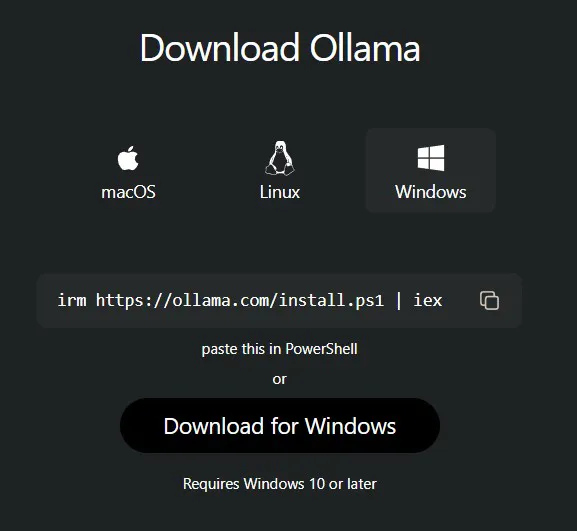
Screenshot: ollama.com/download - the Windows button.
Run OllamaSetup.exe and accept the UAC prompt. The installer is silent - no wizard, no options screen. It finishes in under a minute and Ollama starts automatically as a background service.
After install, Ollama registers itself as a startup service and places a small llama icon in your system tray (bottom right, notification area). That icon means it is running and ready. Right-clicking it gives you basic controls - including Quit when you want to stop it entirely.
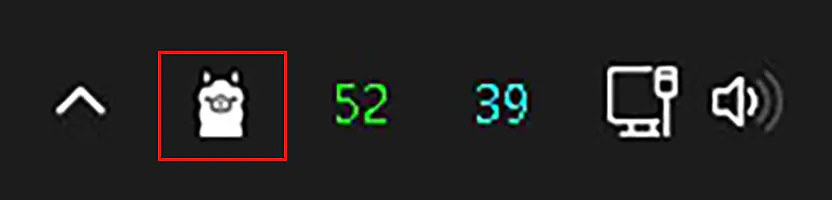
Screenshot: The Ollama llama icon in the Windows system tray.
irm https://ollama.com/install.ps1 | iexOpen a new terminal (PowerShell or Command Prompt) and type:
ollama --version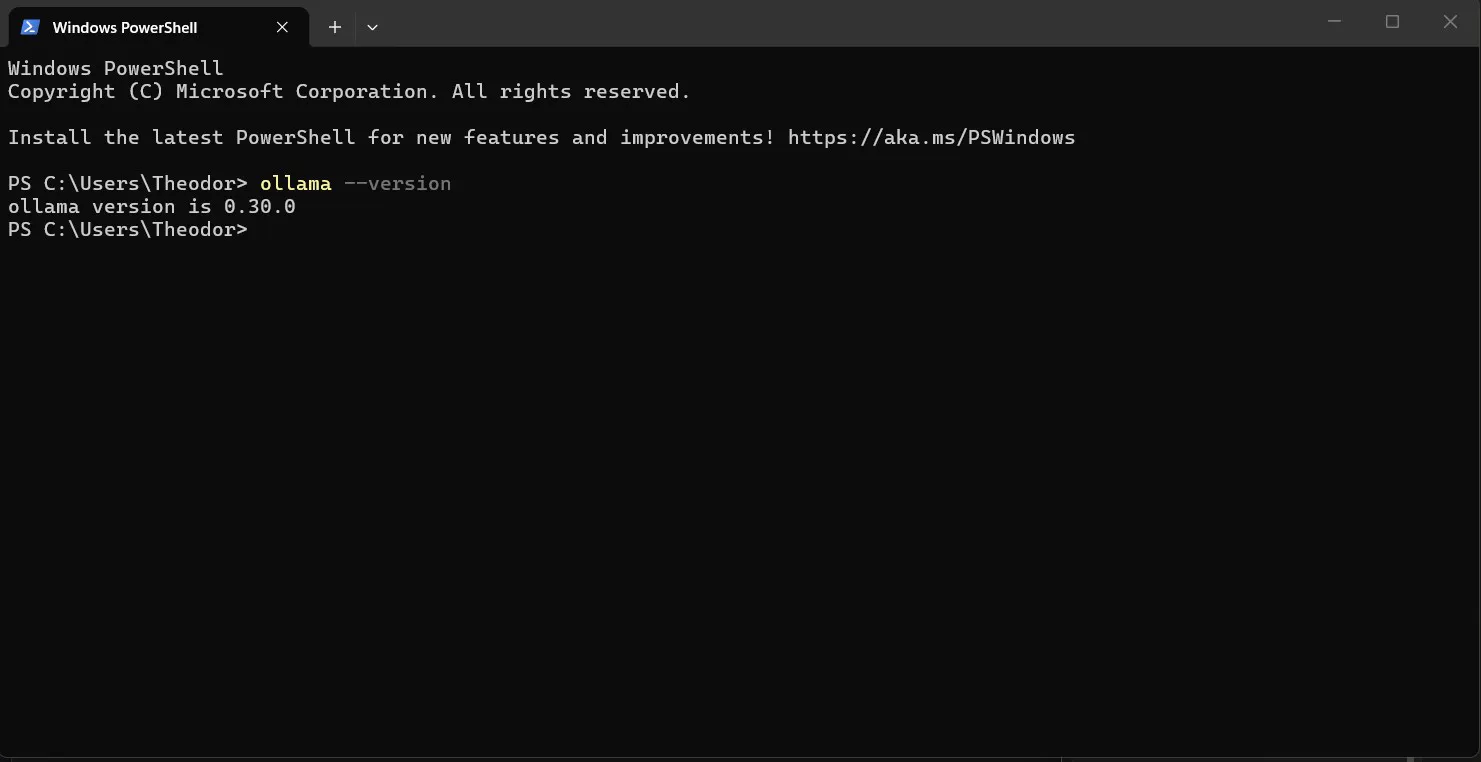
Screenshot: ollama --version output - a version number confirms a working install.
If it prints a version number, you are done. The service is already running in the background.
By default Ollama stores models in C:\Users\YourName\.ollama\models. If your C: drive is tight, the cleanest solution is either in the GUI (Settings > Model location) or a directory junction - you point Ollama's default models folder at a location on another drive and it writes there without knowing the difference. The OLLAMA_MODELS environment variable exists for this purpose but is unreliable on Windows, so skip it.
Make sure your destination folder exists first. If you have already pulled models to C:, move them over before creating the junction - open PowerShell as Administrator and run:
Move-Item "$env:USERPROFILE\.ollama\models\*" "D:\ollama-models"
Remove-Item "$env:USERPROFILE\.ollama\models"
Then create the junction:
New-Item -ItemType Junction -Path "$env:USERPROFILE\.ollama\models" -Target "D:\ollama-models"The default models folder must be empty before running this. After that, pull as normal - everything lands on D: transparently.
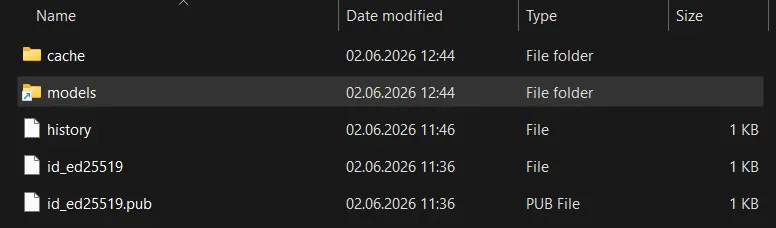
Screenshot: the models folder showing a junction arrow - Ollama writes here, everything lands on D:\ollama-models.
Video: Full Ollama install walkthrough on Windows 11 (2026), including the GUI.
Ollama is installed and running. Pull a model and talk to it.
1.1) Where to browse
All available models are listed at ollama.com/library🔗. Each model page shows available sizes, quantization variants, a description, and pull counts. The pull counts are a useful signal - high numbers mean a model has been run across many different hardware configurations by the community and is well-tested.
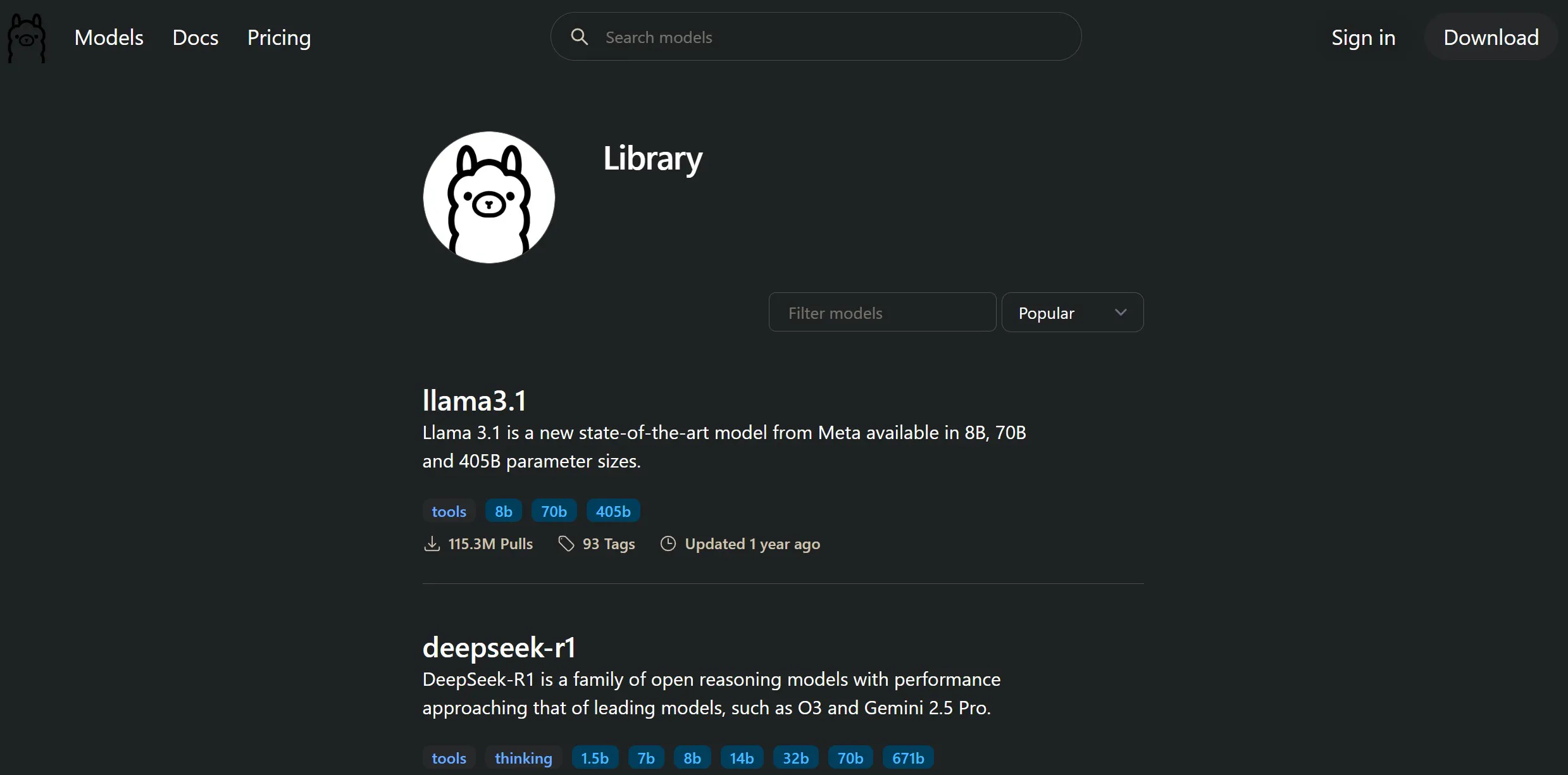
Screenshot: ollama.com/library - the full model catalogue with pull counts.
The most pulled models as of 2025-2026, and what to call them in Ollama:
llama3.2 - Meta, 1B and 3B. 69.6M pulls. The reliable lightweight starter.
llama3.1 - Meta, 8B to 405B. 114.6M pulls. Still the most widely used series overall.
gemma3 - Google, 1B to 27B. 36.8M pulls. Runs on a single GPU. Current and very capable.
qwen2.5 - Alibaba, 0.5B to 72B. 30.5M pulls. Trained on 18 trillion tokens. Strong multilingual.
qwen3 - Alibaba, 0.6B to 235B. Latest generation, includes mixture-of-experts variants.
mistral - Mistral AI, 7B. 29.3M pulls. Fast, reliable, excellent for coding tasks.
phi4 - Microsoft, 14B. 7.5M pulls. Exceptional reasoning and instruction following.
deepseek-r1 - 1.5B to 671B. 85.8M pulls. A reasoning model - it thinks step by step before answering.
1.2) Sizes and how to specify them
Most models come in multiple sizes. You pick one with a tag after the colon:
ollama pull llama3.2:1b         # 1 billion params - tiny and very fast
ollama pull llama3.2:3b         # 3 billion params - the reliable starter
ollama pull gemma3:4b           # Google's 4B - excellent quality for the size
ollama pull qwen2.5:7b          # strong all-rounder, 4.4 GB
ollama pull phi4:14b            # Microsoft's reasoning model, 8.2 GB
ollama pull llama3.1:70b        # for the serious rigs, 40 GB
If you omit the tag entirely, Ollama pulls the default - usually the most practical size for general hardware. For most models that means the 7B or 8B variant.
2.1) Pull your first model
Start with llama3.2:3b. Small enough to run on almost any machine made in the last five years, fast enough to feel responsive, and good enough for a real conversation. Uses up about 2 GB on disk.
ollama pull llama3.2:3b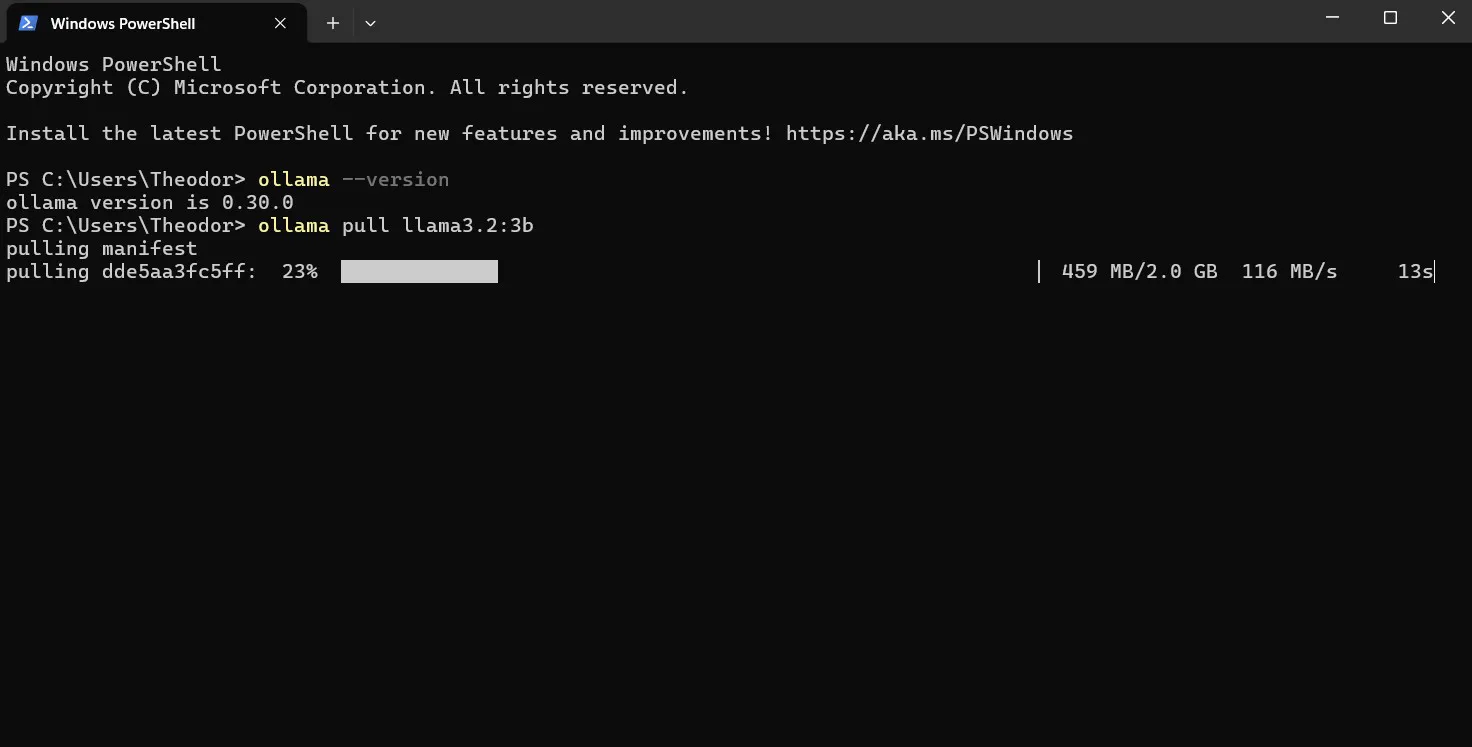
Screenshot: ollama pull in progress - each layer downloads and verifies separately.
Ollama downloads in chunks and shows progress per layer. It goes into your models directory and stays there - you only download once per model. Pull as many as your storage allows.
2.2) Run it
One command:
ollama run llama3.2:3bThe model loads into memory - a few seconds on a GPU, a bit longer on CPU - and you land at a prompt. Type anything. The model responds in your terminal. No browser, no login, no internet required from this point on. It is completely offline.
If you have not pulled the model yet, ollama run will pull it automatically before starting. So the pull step is optional - run does both.
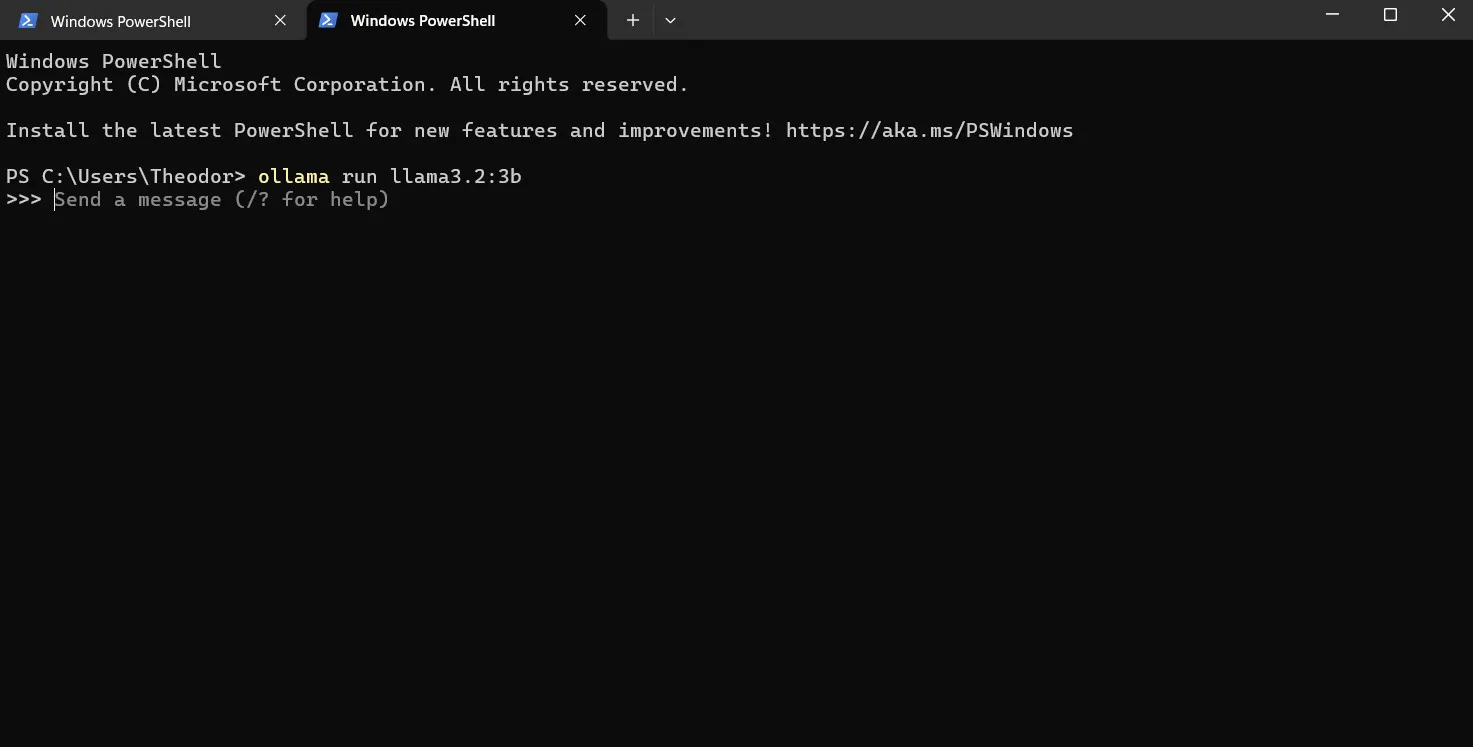
Screenshot: The interactive prompt after ollama run - type here, model responds below.
Not a terminal person? Ollama ships with its own GUI.
If you installed via the Windows installer or the macOS DMG, Ollama comes with a native chat window. Open it from the tray icon or your Applications folder - you get a proper chat interface with model switching, conversation history, and built-in update notifications for your pulled models. Same models, same local inference, no command line required.
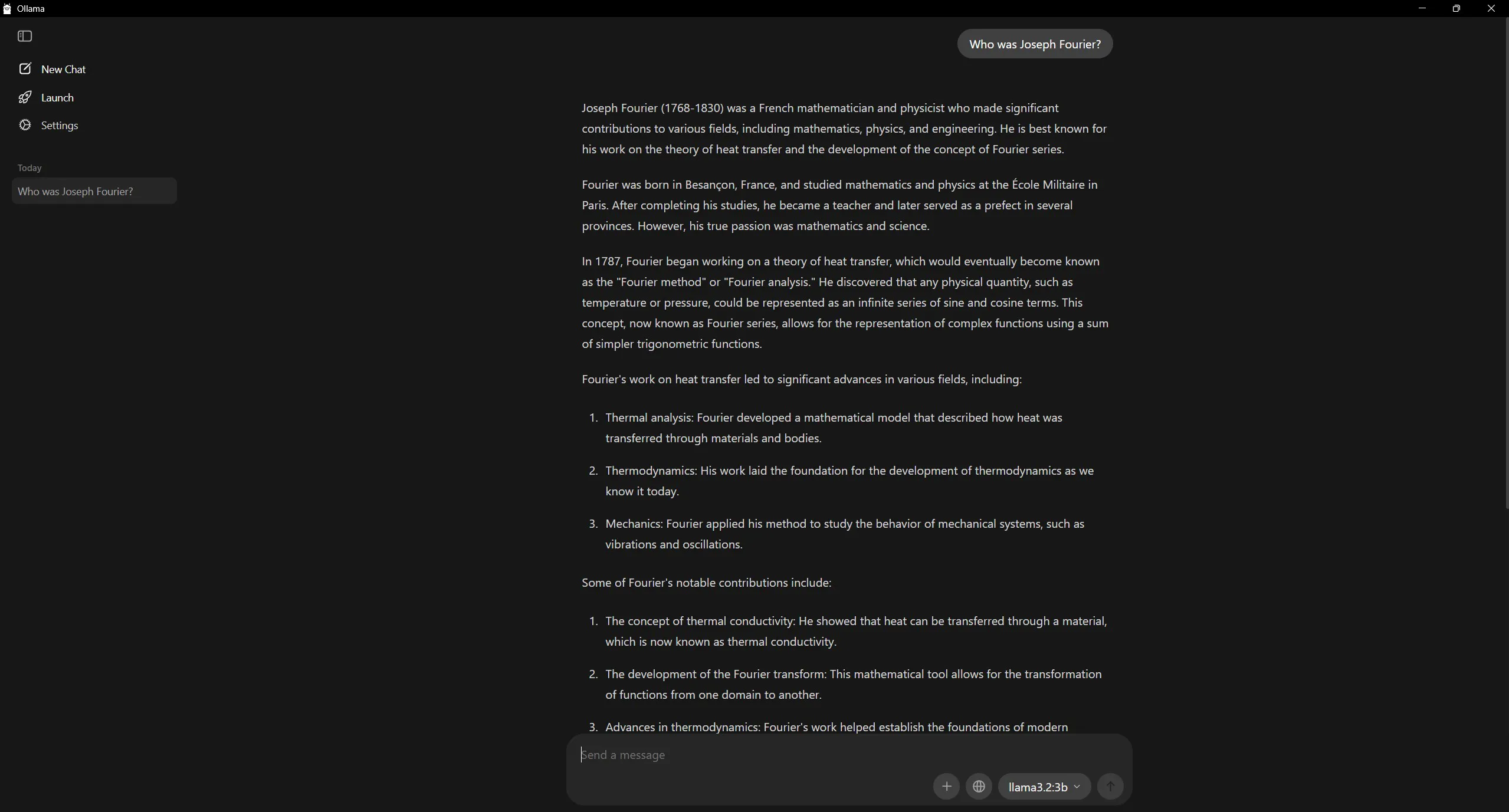
Screenshot: Ollama's native GUI - chat interface, model selector, conversation history, all local.
2.3) In-session commands
While inside an ollama run session, a few useful commands:
/bye               # exit the session
/clear             # reset the conversation context
/show info         # display model details and active parameters
/? # list all available commandsThe full set of commands you will actually use:
ollama list                  # see all downloaded models with sizes
ollama pull mistral          # download a new model
ollama run mistral           # run an interactive session
ollama rm mistral            # delete a model from disk
ollama show llama3.2:3b      # show model metadata and parameter details
ollama ps                    # see which models are currently loaded in memory
ollama stop llama3.2:3b      # unload a model from memory immediately
ollama list shows everything you have pulled and how much disk each takes. ollama ps is useful when managing VRAM - Ollama keeps a model loaded for a few minutes after the last request so repeated calls are fast. If you want to free the memory right away, ollama stop does it instantly.
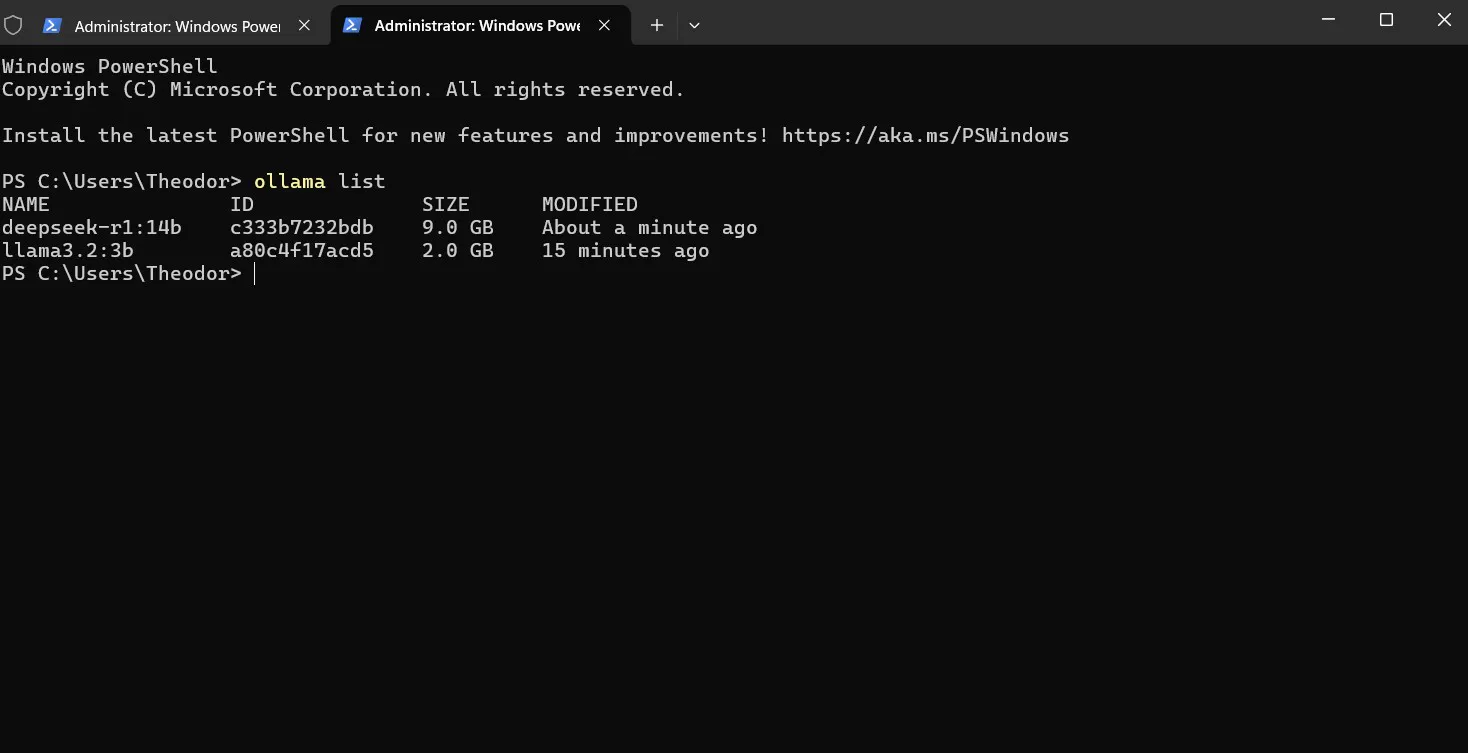
Screenshot: ollama list - your local model library with names, sizes, and modification dates.
To update a model to its latest registry version, just re-pull it:
ollama pull llama3.2:3bOllama checks the digest and only downloads what has changed.
The CLI is the fast path in. The API is where it gets interesting.
1.1) What it is
When Ollama is running, it exposes a local HTTP server at http://localhost:11434. Any program on your machine can send it an HTTP request and get a model response back. This is how you wire Ollama into your own scripts, editors, or tools - no UI layer required, no additional setup.
The three endpoints you will reach for:
POST http://localhost:11434/api/generate    # single prompt, single response
POST http://localhost:11434/api/chat        # multi-turn conversation with history
GET  http://localhost:11434/api/tags        # list all downloaded models
1.2) Generate - the simplest call
From PowerShell (or any terminal with curl available):
curl http://localhost:11434/api/generate -d '{"model": "llama3.2:3b", "prompt": "What is the Fourier transform, in two sentences?", "stream": false}'Setting "stream": false returns one complete JSON object when the generation is done, rather than streaming tokens as they are produced. The field you want is "response".
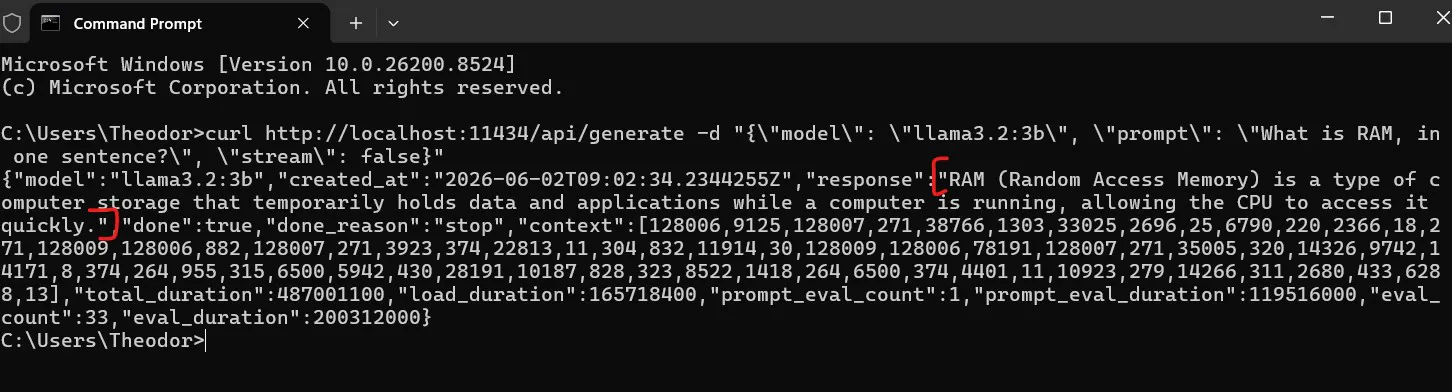
Screenshot: curl hitting the local API - the "response" field contains the model's answer.
1.3) Chat - with conversation history
For a multi-turn conversation where the model needs context from previous messages:
curl http://localhost:11434/api/chat
  -d '{
    "model": "llama3.2:3b",
    "messages": [
      { "role": "user", "content": "My name is Theo." },
      { "role": "assistant", "content": "Got it, Theo." },
      { "role": "user", "content": "What is my name?" }
    ],
    "stream": false
  }'
You manage the history yourself - send the full message array every time. Ollama does not retain state between API calls, which keeps things clean and predictable.
1.4) Python in four lines
No library beyond the standard requests package:
import requests

r = requests.post(
    "http://localhost:11434/api/generate",
    json={"model": "llama3.2:3b", "prompt": "Explain entropy briefly.", "stream": False}
)
print(r.json()["response"])
Or install the official Python library for a cleaner interface:
pip install ollamaimport ollama
response = ollama.chat(
model="llama3.2:3b",
messages=[{"role": "user", "content": "Explain entropy briefly."}]
)
print(response.message.content)That is the full integration. If your language can make an HTTP POST request, it can talk to Ollama. The complete API reference is at github.com/ollama/ollama - docs/api.md🔗.
2.1) What a Modelfile does
A Modelfile lets you bake a system prompt, a temperature setting, and other parameters into a named model you can call directly by your own name. Think of it as a lightweight config layer you wrap around any base model - without duplicating the weights.
Create a plain text file called Modelfile (no extension) anywhere on your machine:
FROM llama3.2:3b
SYSTEM "You are a concise technical assistant. Answer in plain text. No markdown, no bullet points unless explicitly asked."
On Windows, save it in Notepad - set the file type to "All Files (*.*)" and name it exactly Modelfile with no extension. If you see Modelfile.txt in the folder, rename and remove the extension.

Screenshot: Modelfile open in Notepad - FROM and SYSTEM lines, no .txt extension on the file.
Build it into a named model:
ollama create my-assistant -f ModelfileRun it:
ollama run my-assistant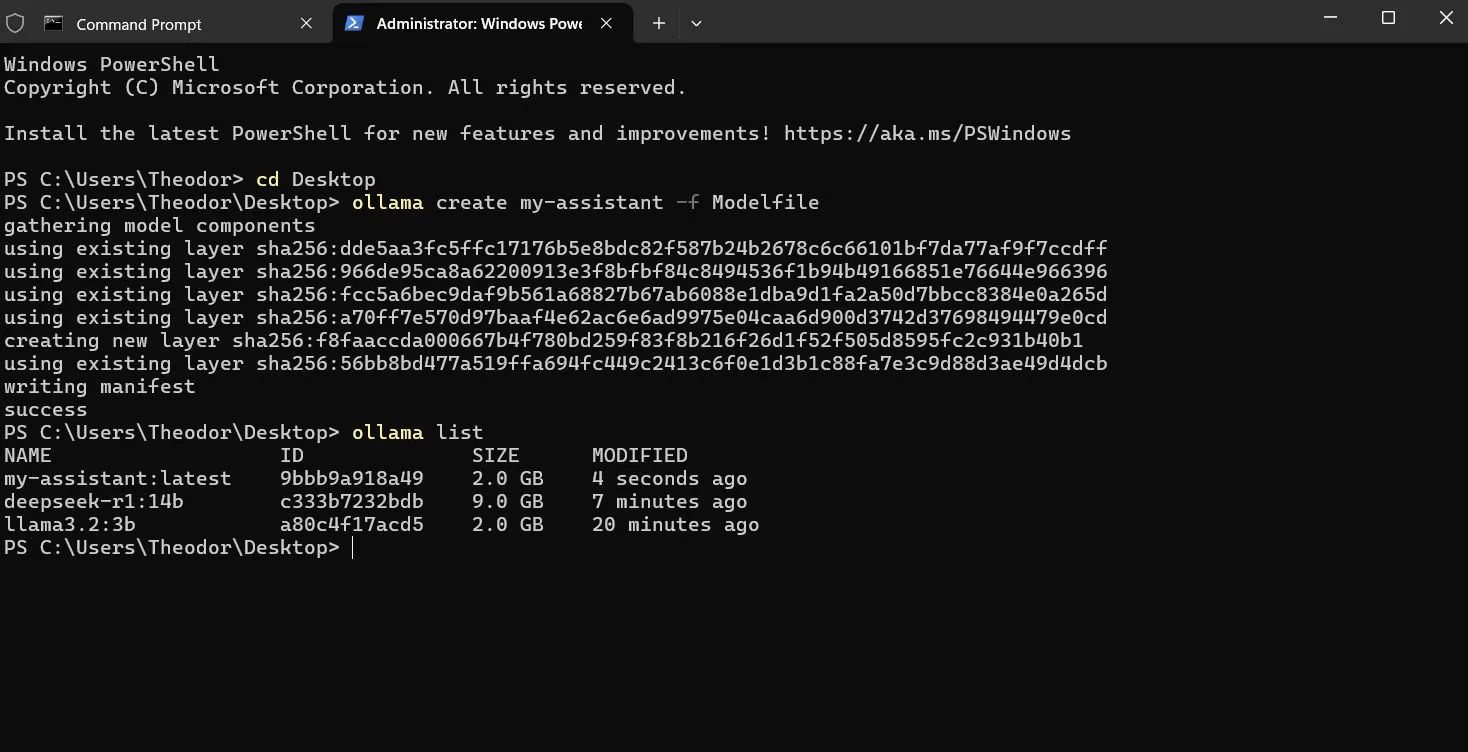
Screenshot: ollama create completing, followed by ollama list showing my-assistant alongside the base model.
It shows up in ollama list like any other model. Delete it with ollama rm my-assistant when you do not need it anymore.
2.2) Useful parameters to set
Two parameters worth knowing:
FROM qwen2.5:7b
SYSTEM "You are a Romanian-to-English translator. Translate everything the user sends."
PARAMETER temperature 0.2
PARAMETER num_ctx 8192
temperature controls randomness. Lower values (0.1-0.3) make the model more deterministic - better for factual answers, translation, code. Higher values (0.7-1.0) make it more creative and varied. Default is usually 0.8.
num_ctx is the context window in tokens - how much of the conversation the model can "see" at once. The default for most models is 2048. Bumping it to 4096 or 8192 helps for long conversations or large pastes, but it increases VRAM usage. Do not set it higher than your hardware needs.
You now have a private AI running on your own hardware. One install, one pull, one command. Nobody logged your queries. Nothing was sent anywhere. The model runs in the RAM and VRAM you already own, and it will be there tomorrow whether or not some API goes down or a pricing tier gets restructured.
This is nova: fewer moving parts, no surprises, full ownership.
Ollama just works. The CLI is clean, the GUI is clean, and the model library keeps growing - genuinely capable open-source models that close the gap with commercial offerings every few months. It is worth checking back on ollama.com/library🔗 regularly. There are specialized models for vision, code, translation, and structured reasoning that you will not find just by searching around - browse it properly.
Start with gemma3:4b or llama3.2:3b depending on your hardware. Then push into the API, write a Modelfile or two, and it becomes a tool you can actually use.
Of course, much more is coming soon, so:
Stay tuned right here, on Unbound Planet, with your favorite host.
--Theo
Contact me🔗 for suggestions, feedback, ideas.

